
To prevent your photos being used by other agents a Watermark can be applied to your images on your website. This will not affect images in your printed property details or particulars.
Rightmove's Technical Guidelines:
Rightmove specify for the placement of watermarks on their website which we strongly recommend you adhere to. Taken (as at Feb 2023) from Rightmove's Technical Guidelines:
To make sure your images are presented clearly if watermarked, only white, translucent watermarks may be used, and they may be no larger than one-quarter of the overall image size. Watermarks should be white (for images) or grayscale (for floorplans).
Opacity of watermarks should be 30% or lower. Logos may be used, but watermarks are only for the purpose of preventing image copyright and should contain no further messaging.
-
Plain text: Your agency name, as registered with Rightmove - UK's number one property website for properties for sale and to rent .
-
Agents are not permitted to use logos or other branding as part of their watermarks
-
Colour/ display: All watermarks should be translucent, i.e. no solid colours.
Watermarks on images should be white, but on floorplans can be grayscale.
-
Size & position: Central to the image and no larger than one-third of the total width and height of the image.
Longer agency names may need to be spread over two lines to accommodate this.
Watermarks are accessed from File -> Configuration -> Properties->Watermark Images. This should be used with care as it will not only apply a watermark to photos as they are added to Acquaint but your existing images too.
Adding a Watermark
-
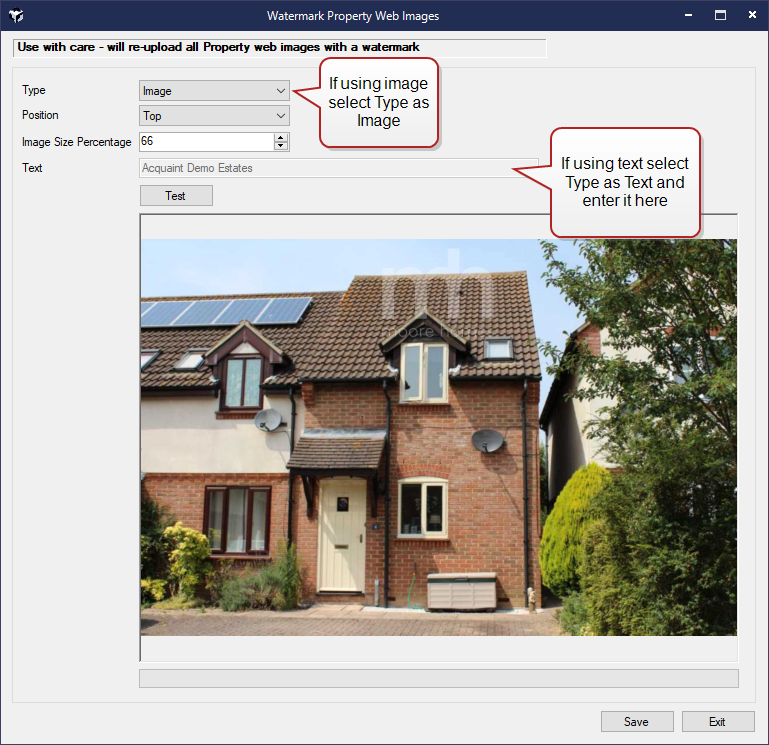
For Watermark Type choose from either Text or Image. When Image is selected for the first time a message box will appear on screen asking whether you would like Bright Logic support to generate a watermark image. If you choose Yes an email will be sent to Bright Logic Support and we will create a watermark for you. Clicking No will cancel and no email will be sent to our Support Team. Alternatively, if you already have a watermark you want to use you can email it to us via support@brightlogic.co.uk once we've confirmed the image has been uploaded continue the steps below.
-
Against the Position field specify where the watermark will be located from the options of Centre, Bottom, Top or Bottom Right.
-
The Image Size Percentage field allows you to shrink the image size if it's too big. Use the arrows to reduce the percentage size.
-
If using the Text option type your desired text in the Text field.
-
Click the Test button to view a sample image, note the text is very small and sometimes hard to view on certain images.
-
Click Save to proceed.
Removing a Watermark
To remove the Watermark set the Watermark Position to None and click Run