
🗺️ Viewing Mode & Map View Functionality
Several screens in Acquaint offer a Viewing Mode toggle, allowing users to switch between Grid/List View and Map View. This feature enhances navigation and visualisation of property data.
📍 Where Viewing Mode Is Available
You can access Viewing Mode from the Menu button or by clicking the Grid/List and Map View icons. It is available on the following screens:
-
Certificates List
-
Property List
-
Board List
-
Tenancy List
-
Selected tabs within Property and Contact screens, including:
-
Tenancies
-
Certificates
-
Properties
-
🗺️ Map View Features
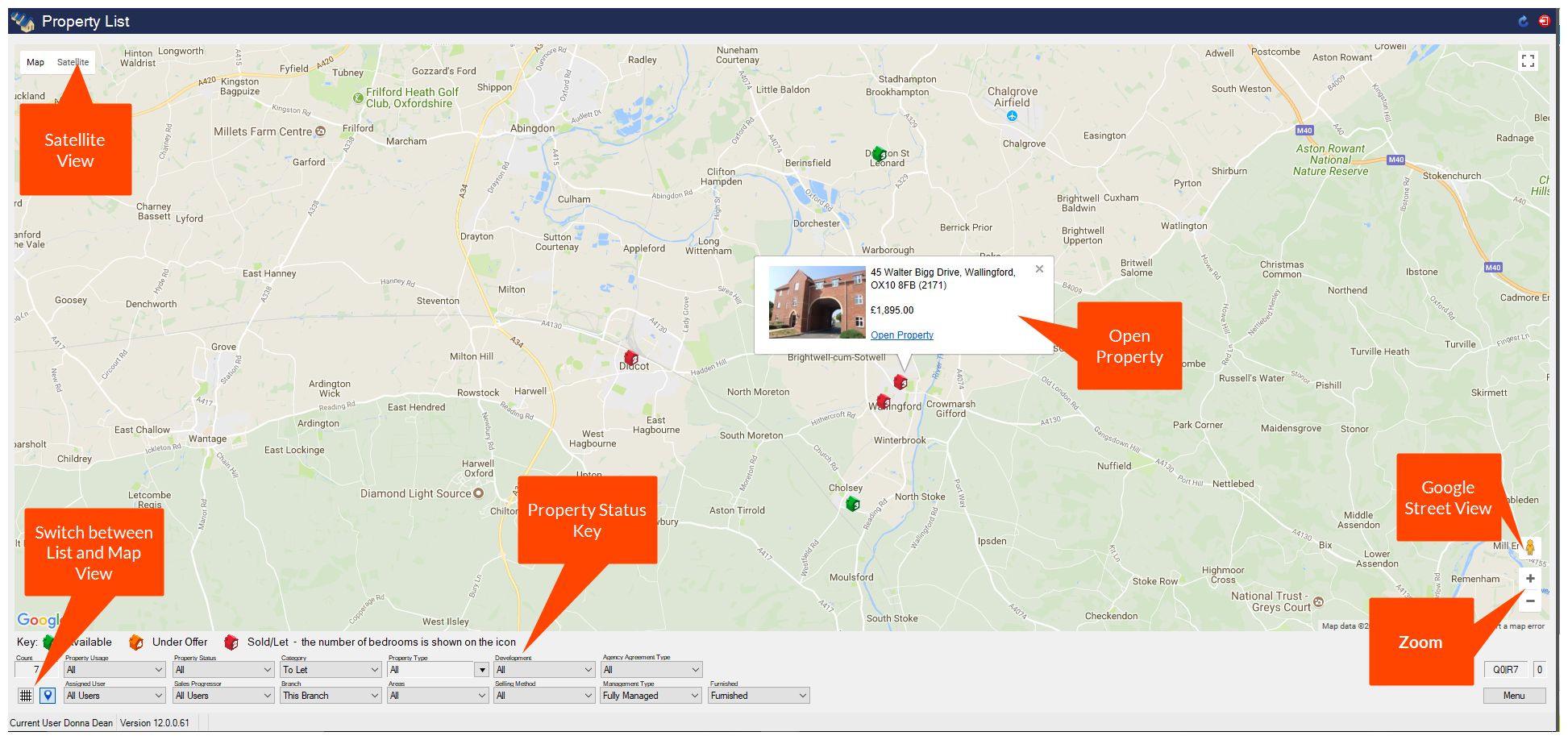
The Map View displays a Google Map centred on your agency office location, with pins representing all relevant properties.
🧭 How to Use Map View
-
Click the Map icon in the bottom left corner of the Property List screen to activate Map View
-
Properties will be plotted automatically
-
Right-click on the map to access the Print option
-
Switch back to List View anytime by clicking the Grid icon
🔍 Map Filters & Visual Indicators
-
Use Filters to refine which properties are displayed on the map
-
A coloured key indicates each property's status
-
The number of bedrooms is shown directly on the property icon
🛰️ Zoom & Satellite Options
-
Zoom in to street level for detailed views
-
Click Satellite View to display aerial imagery with overlaid street names
-
Drag the Google Pegman icon to any location for Street View

🖼️ Property Details on Map
Clicking a property pin will display:
-
A thumbnail image
-
Basic property details
-
A link to open the property directly in Acquaint
🖨️ Printing the Map
To print the map:
-
Right-click and select Print
-
A Print Preview screen will appear
-
Click the Print icon to complete the process