
🔎 Using the Find Feature
The Find tool allows you to quickly locate Contacts, Properties, and Work Orders across the system.
🧭 Accessing Find
-
Click the Find icon located in the Actions group under the Main tab of the ribbon menu.
-
You can also access Find directly from the Contact, Property, and Work Order screens.
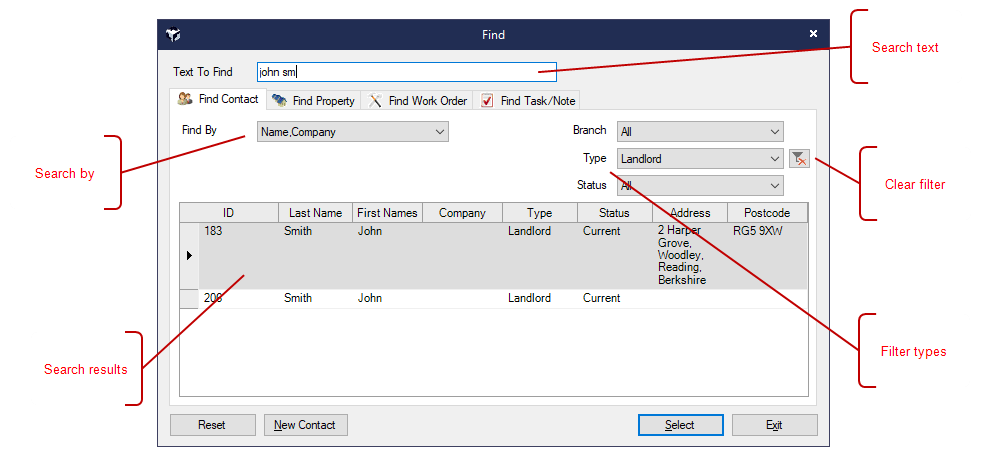
👤 Find a Contact
-
Enter search terms in the Text to Find box. Matching results will appear below.
-
Click Select to open the desired record.
🔧 Additional Options
-
Reset – clears the current search criteria
-
New Contact – opens a form to add a new contact
🔍 Search Behaviour
-
Alphabetic input (A–Z) searches by Name/Company Name
-
Numeric input (0–9) searches by Contact ID
-
Use the Find By dropdown to search by:
-
Postcode
-
Street
-
Locality/Town
-
Email
-
Telephone
-
Property ID
-
Note/Task Text
-
🧠 Smart Search Tips
-
Enter two or more characters to see matching names (e.g., “Sm” returns “Smith,” “Small,” “Smooth”)
-
Use a comma to separate names:
-
“Smith, F” or “F, Smith” (either order works)
-
-
For couples (e.g., “Fred & Jane Smith”), you can search by either name:
-
“Jane Smith” will return the correct record
-
-
Searches combine Salutation + Last Name:
-
“Steve Smith” will match “Stephen Smith” with salutation “Steve”
-
-
Use Next and Previous buttons on the Quick Access toolbar to browse multiple matches
-
Results display the mailing address, not just the home address
🏠 Find a Property
-
Type your search terms into the Text to Find box
-
Click Select to open the desired property record
🔍 Search Behaviour
-
Alphabetic input (A–Z) searches by Street/Property Name
-
Numeric input (0–9) searches by Property ID
-
Use the Find By dropdown to search by:
-
Postcode
-
Street
-
Locality/Town
-
Alt. Reference
-
Key Number
-
🧠 Property Search Tips
-
Properties within a Block will show a Block Management icon in the Address column
-
Use Next and Previous buttons on the Quick Access toolbar to browse multiple matches
-
Reset clears the current search criteria
-
Use the File menu to quickly access the last 10 Contacts or Properties viewed
🛠️ Find a Work Order
-
Enter the Work Order ID in the Text to Find box
-
Click Select to open the record
-
Default search is by ID
-
Reset clears all search criteria
⚙️ Filters
Each search tab includes filters to narrow your results.
-
When a filter is active, an icon will appear
-
Click the icon to clear the filter
Let me know if you'd like this turned into a user guide, training module, or interactive help overlay—I’d be happy to tailor it to your team’s needs.