
🏠 Linking Properties
Properties can be linked together to support the management of Houses in Multiple Occupation (HMOs), especially when advertising individual rooms separately.
Read the HMO help topic on how to set-up HMOs.
🔧 How to Link Properties
-
Open the Property you wish to link to a Primary Property.
-
Click Edit.
-
Navigate to the Advanced tab.
-
Click Link To / Unlink.
-
Search for and select the Primary Property.
-
Click Save.
🔓 How to Unlink Properties
-
Open the Linked Property you wish to unlink.
-
Click Edit.
-
Go to the Advanced tab.
-
Click Link To / Unlink.
-
Click Save.
🔗 Linked Property Behaviour
-
The Primary Property will be displayed in the title bar of the Property screen.
-
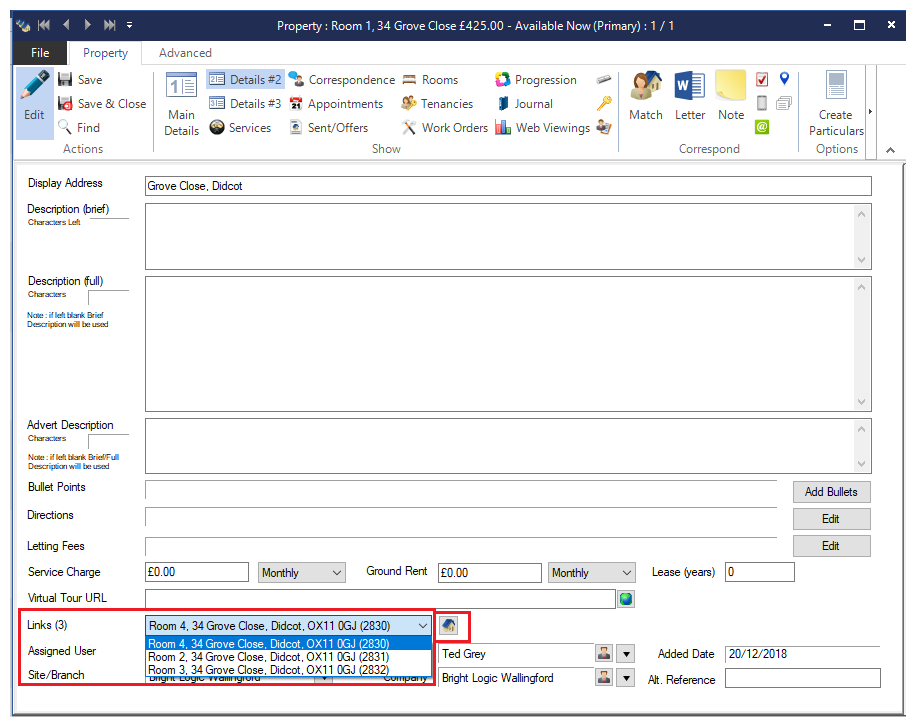
All Linked Properties will appear in the Links dropdown within the Details #2 section.
-
For a Linked Property, the label (Link) will appear in the title bar (see Figure 1).
-
The corresponding Primary Property will be shown in the Linked To dropdown in the Details #2 section (see Figure 2).
💰 Financial Integration
-
Rent received for any linked property is recorded against the Primary Property in the Landlord’s Account.
-
Work orders charged to the landlord for individual rooms are also logged against the Primary Property.
🚫 Excluded Home Page Reminders
Linked Properties are excluded from the following reminders on the Home Page:
-
Electricity Safety Certificate Required
-
Fire Alarm Required
-
Gas Safety Certificate Required
-
Carbon Monoxide Alarm Required
-
Legionella Risk Assessment Required
-
Portable Appliance Testing Required
-
Smoke Alarm Certificate Required
-
EPC Required (Sales and Lettings)
If a Linked Property does not have its own EPC, the EPC details from the Primary Property will be used during upload.
These reminders will only apply to the Primary Property, ensuring streamlined compliance tracking for HMO configurations.
🧾 Tenancy Visibility
All Tenancies associated with Linked Properties will be displayed under the Primary Property in the HMO Occupancy screen.

👤 Ownership Management
-
The Owner field on a Linked Property is read-only—the dropdown arrow is disabled to prevent changes.
-
To update ownership, changes must be made on the Primary Property. Once updated, the new owner will automatically be applied to all Linked Properties.