🛠️ Definable Fields in Acquaint
In addition to Acquaint’s standard fields, you can create customizable, user-defined fields for both Properties and Contacts to capture additional, tailored information.
🔧 Accessing Definable Fields
Navigate to:
File → Configuration → Definable Fields
Each entity—Contacts and Properties—can have up to 10 User Defined Fields.
🗂️ Creating Definable Field Groups
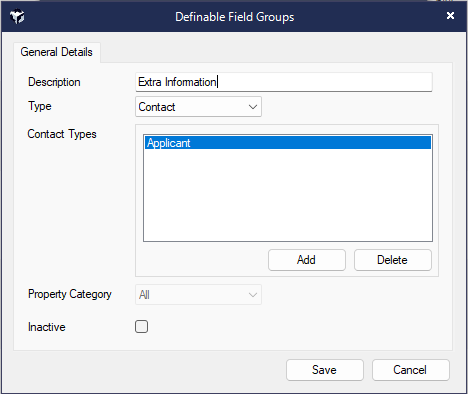
Field Groups determine where the custom fields will appear:
-
Properties
-
Contacts
-
Progression (Sales & Lettings)
For Contacts, click Add to specify which Contact Types the field group applies to (e.g., Applicants, Landlords).
✏️ Creating User Defined Fields
-
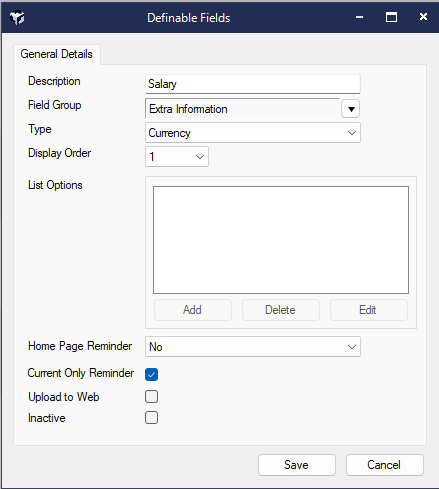
Click New to create a field
-
Enter a Description
-
Select a Field Group
-
Choose a Field Type from the dropdown list:
|
Field Type |
Description |
|
Text Multi Line |
For longer text entries |
|
Text Single Line |
For short text entries |
|
Drop Down List |
Choose from predefined options |
|
Checked List |
Select multiple predefined options |
|
Currency |
For monetary values |
|
Numeric |
For numbers only |
|
Date |
For date selection |
|
Document Link |
Link to a document |
|
Web Link |
Link to a website |
|
Contact Link |
Link to another contact |
|
Property Link |
Link to another property |
Note: For Drop Down Lists and Checked Lists, use the Add button to define selectable options.
📌 Field Display
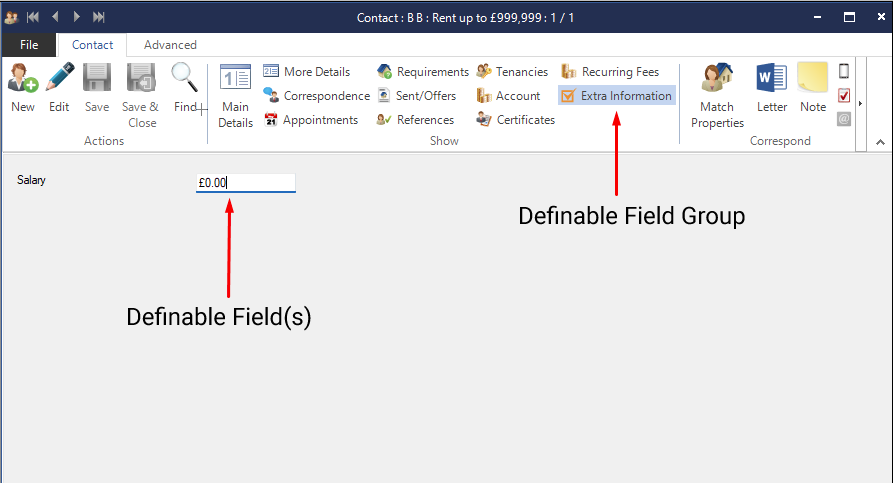
Once created, the fields will appear on the relevant Contact or Property record, grouped under the selected Field Group label.
🧾 Example Setup
-
A Definable Field Group named Extra Information is created for Applicant Contact Types
-
A User Defined Field called Salary is added to this group with the type set to Currency
-
The Extra Info section will now appear on all Applicant records
-
Click Edit on a Contact to enter data into the custom fields
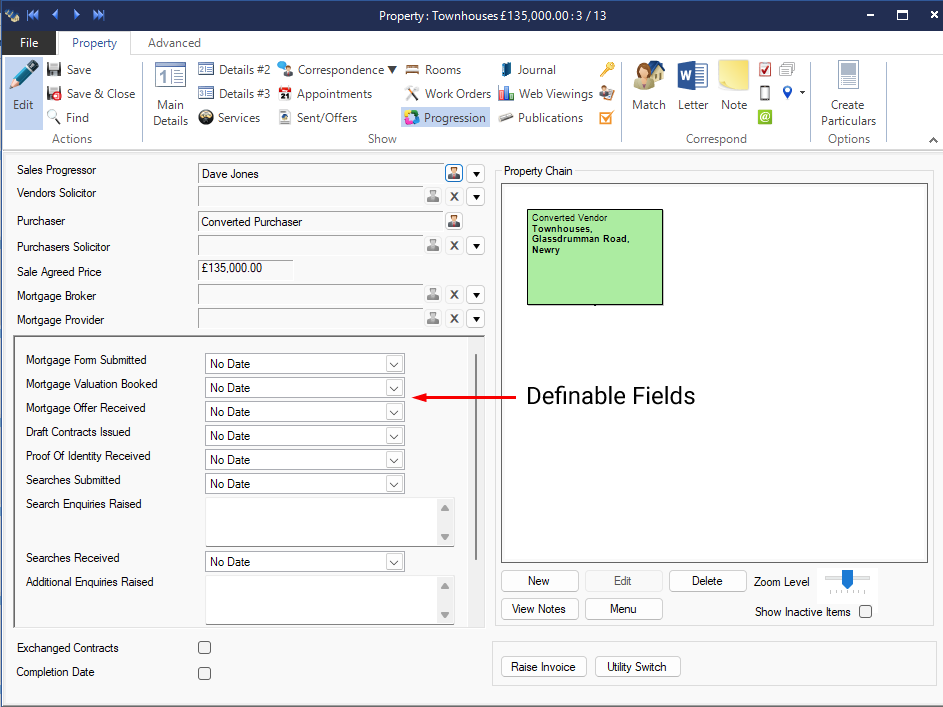
🔄 Progression Screen Customization
You can also customize the Sales Progression and Lettings Progression screens by:
-
Creating Definable Fields
-
Assigning them to the Sales Progression or Lettings Progression Field Groups
This allows you to capture additional details specific to each stage of the transaction.
Example Definable Fields for the Progression screen