
The Client Login allows instant access via a web portal for your clients (landlords, tenants, contractors, vendors, applicants and purchasers) to view their account and relevant data online.
It provides a live connection to your data with a secure login and a registration process that you (the agent) initiate .
Put simply, they won't get access until you give this to them, this is granted through a registration link sent via email in Acquaint using the client registration email template which comes pre-written and ready to use.
The portal can be branded by Bright Logic with your logo and can be customised with different colour themes.
Information on the infrastructure requirements you need to run this can be found below, for customers using Acquaint Anywhere, Client Login will automatically already be activated for you.
How it Works
Make a Test Login for yourself
Before you invite clients to use client login you should have a play with the portal to see how it works by setting up a test account.
-
Either create a new contact record and assign it your email address or use an exiting Contact such as one of your landlords or tenants but FIRST CHANGE THE EMAIL ADDRESS TO YOUR EMAIL ADDRESS.
-
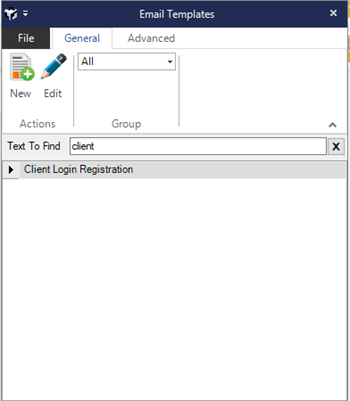
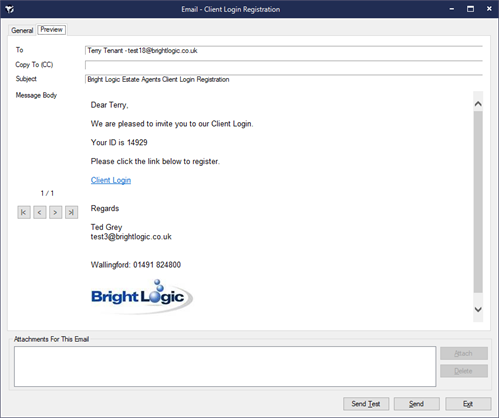
Send yourself an invitation to use the Client Login using the pre-written template in Acquaint called Client Login Registration email.
-
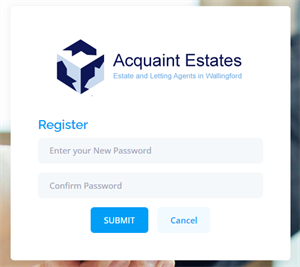
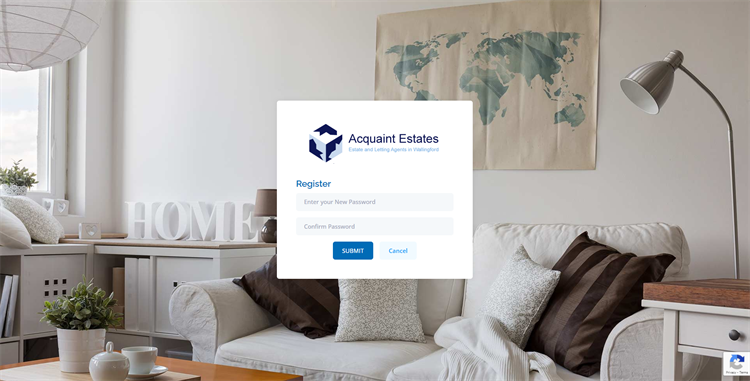
When you receive the email click the link contained in it and set a password.
-
Once you have registered you will be taken to the Home Page.
Step 1
Step 2
Step 3
Step 4
Registering your clients
Your Contacts require an invitation initiated by you to use the Client Login .
Use the pre-written template in Acquaint (shown above) to send to contacts to invite them to use the client login called Client Login Registration email. The email (which is editable) will include the client’s (Contact) ID and a registration link which takes them to a screen that looks like the screen below.
When attempting to register a client the website will perform various checks before allowing the client to complete the registration:
-
Whether the client has already registered. If they have they will be redirected to the login page.
-
The email address matches the contact's email address in your database.
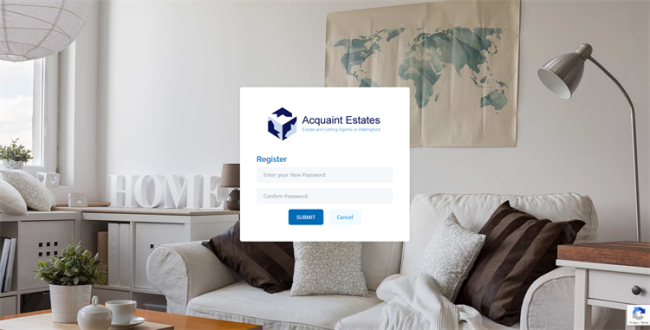
Once the client has successfully registered they will be taken to the Home Page.
How your clients login
Registered clients go to the following link enter their email address or Acquaint ID and password to login to the Client Login. Acquaint websites will have a link to your Client Login. If your website is not supplied by Bright Logic, you may want to speak to your website designers to ask them to add this as a link on your website.
https://clientlogin.acquaintanywhere.co.uk/SignIn?siteprefix=[yoursiteprefix]
(this would have been provided to you in the Client Login Email).
If the client ticks the ‘Remember Me’ option next time they visit the website they will be logged in automatically.
Once the client has successfully logged in they will be taken to the Home Page.
Disabling Contact's Access
You can disable access for a client at any time by changing the Contact's Status to expired on their Contact record.
Once disable when they attempt to login they will get a message 'Unable to sign in: Your access to the Client Login has been revoked'.
Using Client Login - What your clients see
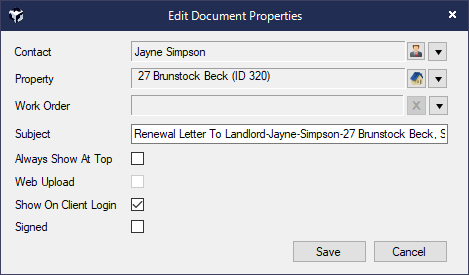
Control what documents appear in the portal click the document in the Contact's Correspondence screen, right-click and choose Document Properties and click Edit Details and click the check box Client Login.
What Contacts see when they login to your client login will depend on their Contact Type:
Everyone:
-
Home Page
-
Appointments:
-
Documents
Landlord:
-
Properties
-
Offers
-
Tenancies
-
Maintenance Requests
-
Financial
-
Work Orders
Vendor:
-
Properties
-
Offers
Contractor:
-
Work Orders
-
Financial
Tenant with Tenancy:
-
Tenancies
-
Maintenance Requests
-
Arrears
Certificates will only appear when a document has been attached to the Correspondence of the Certificate record in Acquaint.
Infrastructure Requirements
The Client Login website is hosted on a dedicated cloud server which uses LogMeIn Hamachi to connect to your data which is hosted on your server. If your Server PC is switched off clients will not be able to access Client Login. Please check your invoice and if you currently don’t have this service from us please contact Sales on 01491 824800. Once your Hamachi is in place please contact us to activate the Client Login Service.
If you are currently using Acquaint Anywhere, Client Login will automatically be activated for you.
Before sending any invitations to clients send a test registration email and login to your test Client Login account to ensure the infrastructure is configured. For instructions on how to do this see how to make a test login for yourself above.